Manage Collections
Collections can help with verifying an end-to-end application flow by executing one or more tests in a sequence.
Creating a new Collection
To create a new Collection:
- Navigate to Collections page from the left navigation menu.
- Click New Collection button.
- Provide a Name for the Collection.
- Optionally, associate an Environment with your Collection. Any variables defined in Collection's Environment will override the variables for individual tests/monitors.
- Toggle ON/OFF the Abort on Failure/Skip option. When checked - for example, if your Collection has 10 tests to be executed and the fifth test reports a failure during execution, execution of any remainining steps in the Collection will be aborted. When unchecked, all the steps defined in a Collection will be executed regardless of the step's status.
- Click Save
- A new Collection is created and you will be navigated to Edit Collection page. Proceed with adding steps to your Collection.
Edit a Collection
To edit a collection:
- Navigate to Collections page from the left navigation menu.
- Click Edit Collection button for the Collection to add Steps to.
- You will be navigated to Edit Collection screen for the Collection.
- Change the Name, Environment or Abort on Failure/Skip preferences
- Click Save Changes
Add Collection Steps
Once a Collection is created, Steps must be added to the Collection. The steps can be any API monitors or Browser Tests defined in your Workspace.
To add steps to the Collection:
- Navigate to Collections page from the left navigation menu.
- Click Edit Collection button for the Collection to add Steps to.
- You will be navigated to Edit Collection screen for the Collection.
- Click Collection Steps tab.
- Search for API Monitors or Browser Tests to be added as Collection Steps.
- Select the monitor or test to be added and click 'Add' button.
- The selected test will be added to the Step execution order list.
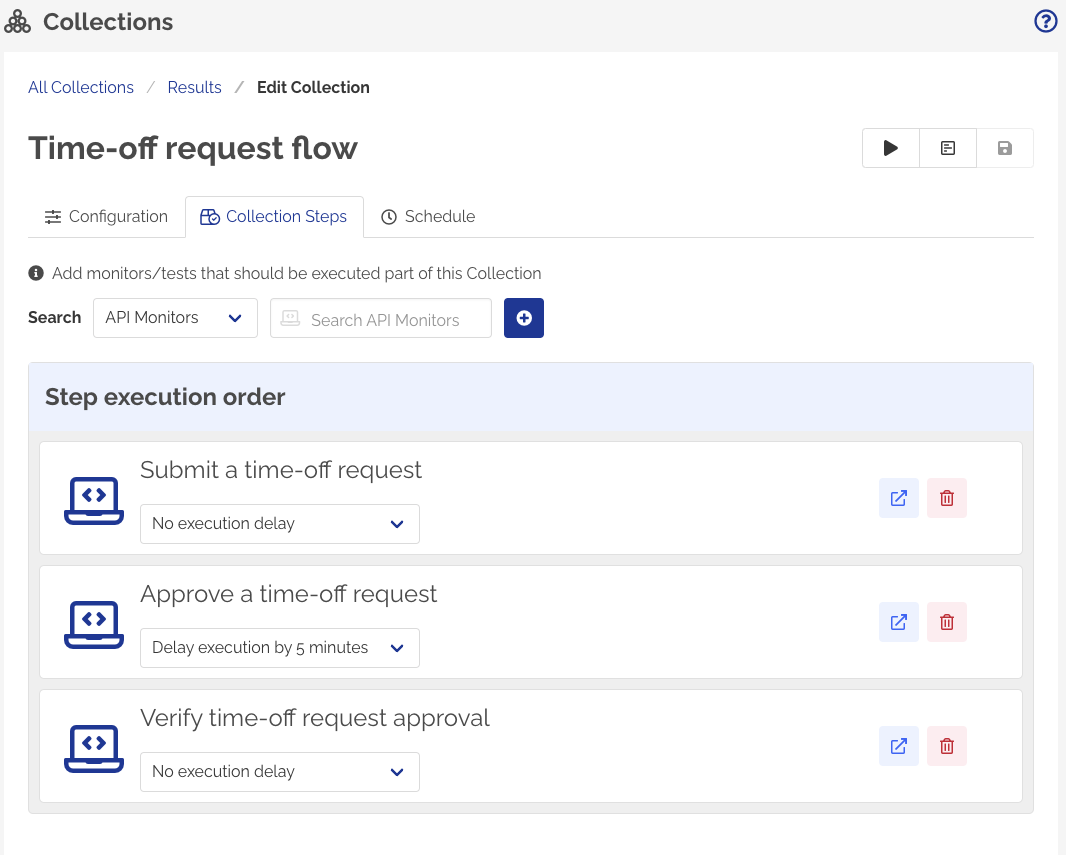
- By default, any newly added steps will be added to the bottom of the list.
- Drag and drop the items in the list to change the execution sequence.
- Optionally, change the execution delay dropdown value to introduce delay before executing the step. By default, there is no execution delay between steps.
Modifying Collection's Steps during an execution can result in unexpected behavior. If we cannot determine the execution sequence due to changes to Collections Steps, the Run Status will be reported as Error or System Abort.
Scheduled Execution
Collections can also be scheduled to run automatically at regular intervals. By default, Scheduled execution is disabled for Collections.
To setup scheduled execution for your Collection:
- Navigate to Edit Collection page for your Collection.
- Click Schedule tab.
- Select the required Run interval.
- Toggle the Schedule status to ON.
- Click Save changes.
Refer Collection execution for more details about how Collection's Steps are executed during a run.
Collections runs can be concurrently triggered via Scheduled runs. Identify the Total Execution Time for your Collection and then Schedule your tests to avoid concurrent runs. Refer Execution Interval for more details.
Delete a Collection
To delete a Collection:
- Navigate to Collections page from the left navigation menu.
- Click Edit Collection button for the Collection to add Steps to.
- You will be navigated to Edit Collection screen for the Collection.
- Click Delete Collection button.
- Confirm Delete to delete the Collection