Lightstep Incident Response Integration
Lightstep Incident Response is an all-in-one incident response platform for quick recovery. This integration allows sending monitoring alerts to associated services in Lightstep which can trigger alerts to on-call users.
SSL, Web Page, Browser Test and API monitoring failures, warning and recovery events can be sent to associated Services in Lightstep Incident Response. When a monitor reports a failure in DevRaven, an alert will be created in Lightstep. The created alert will automatically close if the monitor recovers from failure.
Support
If you need help with this integration, please contact support@devraven.io
Integration Walkthrough
In Lightstep Incident Response
- Login to your Lightstep Incident Response account.
- Navigate to Integrations page from the Left menu.
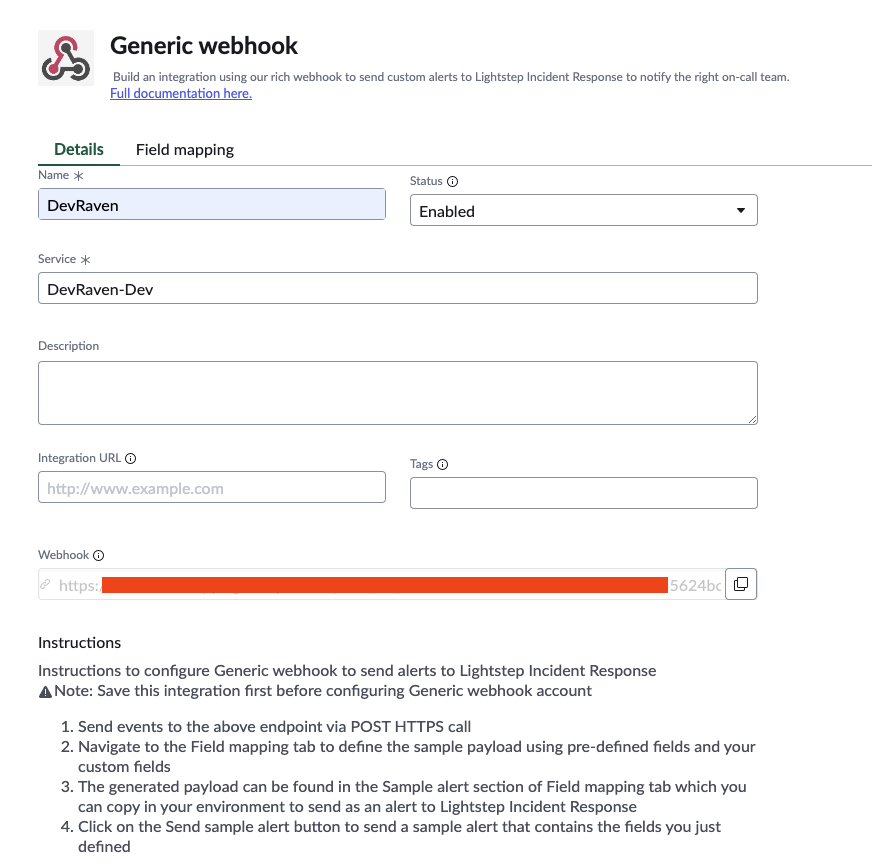
- From the list of Available integrations, select Generic webhook
- Provide a name(e.g. DevRaven) for the integration.
- Select a Service for sending alerts to.
- Click Generate webhook button.
- A new Webhook url is generated. Copy the generated webhook URL.
- DevRaven automatically sends webhook payloads that are fully compatible with Lightstep Incident Response. No additional Field mapping changes are required.
In DevRaven
- Login to your DevRaven Workspace.
- Navigate to Settings page and then click on Integrations tab.
- The page lists Lightstep Incident Response tile.
- Click Add Service button on the Lightstep Incident Response tile.
- A modal will be displayed prompting for your Lightstep Incident Response integration details.
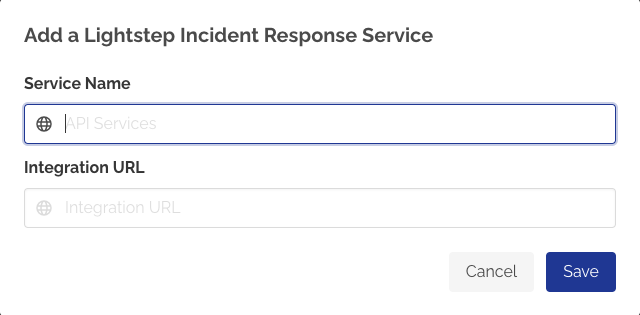
- Provide your Lightstep Incident Response Service Name
- Provide the Webhook URL that was previously copied from Lightstep as Integration URL.
- Click Save.
- Click View details on Lightstep Incident Response tile to see the added details.
Sending Monitoring alerts to Lightstep Incident Response
To send monitoring alerts from monitors:
- Navigate to the monitor page.
- Click Edit Monitor button.
- Click Integrations tab.
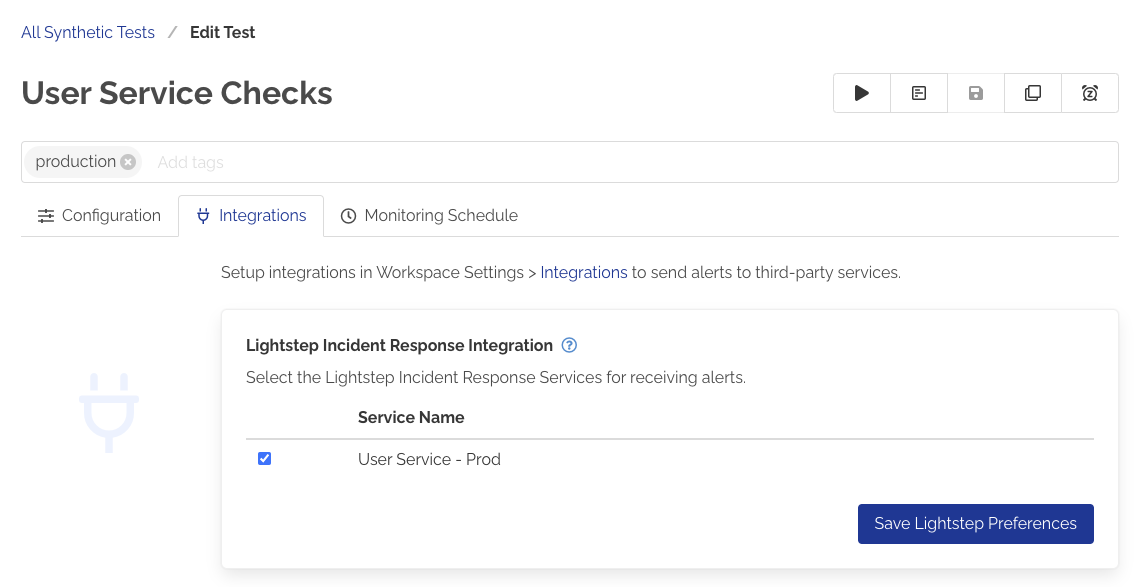
- Under Lightstep Incident Response Integration section, select the Service to be alerted for monitoring/recovery.
- Click Save Lightstep Preferences button.
- The monitor is now configured to send alerts to associated Lightstep Incident Response Service.
- Any failures/warnings triggered for the monitor will result in creation of an alert in Lightstep. The alert will automatically close once the monitor recovers from the failure.
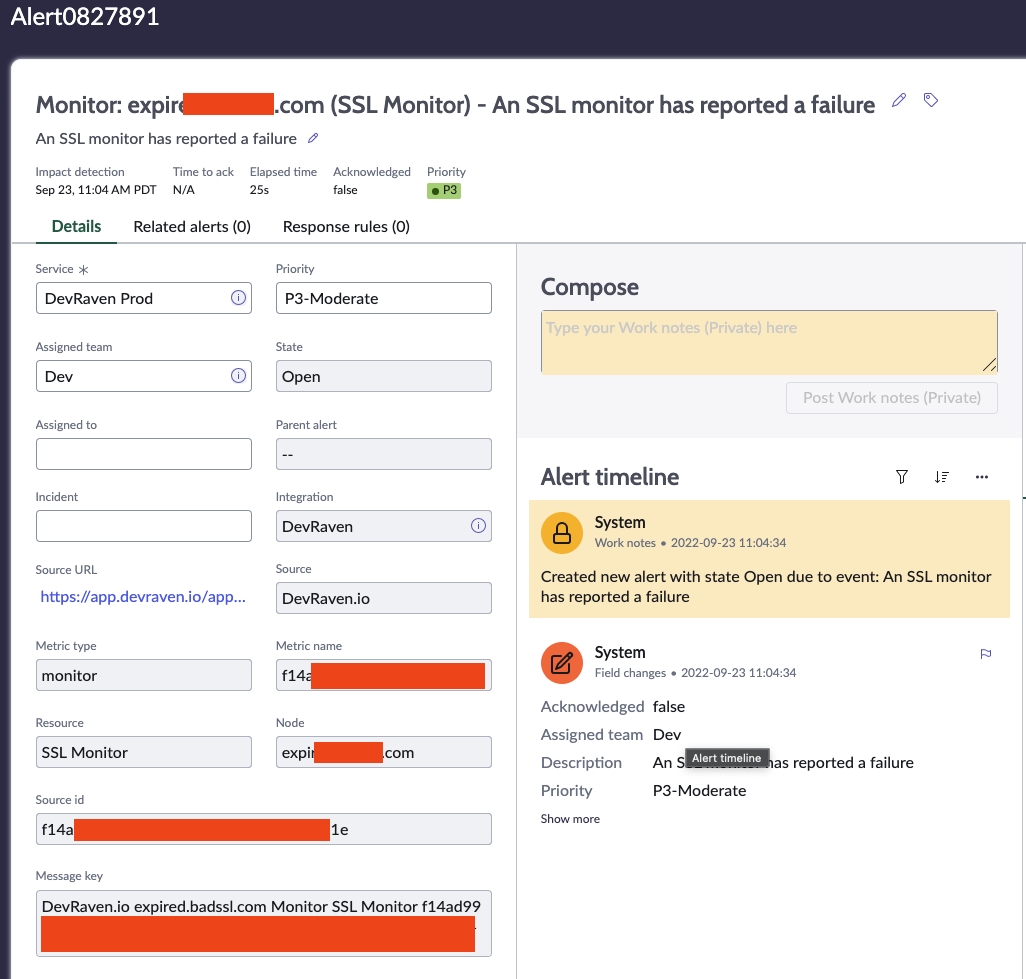
All monitoring alerts from DevRaven are sent as P3 alerts to Lightstep Incident Response. We currently do not support changing the priority for the alerts generated in DevRaven. However, Lightstep Incident Response does support automation using Response rules that allows you to change the default priority for triggered alerts. For example, you can define a response rule in Lightstep to automatically change the priority to P1 for alerts created for a specific Service.
Following is an example SSL monitor alert triggered in LightStep Incident Response:
How to Uninstall
In DevRaven
- Login to your DevRaven Workspace.
- Navigate to Settings page and then click on Integrations tab.
- The page lists a Lightstep Incident Response tile.
- Click View details button.
- Click the Remove button to remove the Webhook URL and confirm the removal.
In Lightstep Incident Response
- Login to your Lightstep Incident Response account.
- Click Integrations from the left menu.
- Select the integration from the list.
- From the Actions menu, click Disable always
- Optionally, to completely delete the integration, click the Integration name from the list and then Click Delete integration